




If you're sending emails to Gmail users, your domain reputation determines whether your messages land in the inbox or spam. Google Postmaster Tools gives you direct visibility into how Gmail views your sending domain, but most marketers don't know how to use it effectively.
This guide shows you how to use Google Postmaster Tools to check domain reputation, monitor spam rates, and understand what Gmail sees when you send email. You'll also learn where the tool falls short and what you need alongside it to actually protect your deliverability.
What Is Google Postmaster Tools?

Google Postmaster Tools is a free diagnostic platform from Google that shows you how Gmail evaluates your email sending practices. It provides data on domain reputation, spam rates, authentication status, encryption, and delivery errors specifically for emails sent to Gmail addresses.
Who should use it:
- Anyone sending bulk email to Gmail users
- Email marketers managing campaigns
- SaaS companies with transactional email
- Ecommerce brands sending promotional messages
- Agencies managing client email programs
Requirements to use Google Postmaster Tools:
- You must be sending a significant volume of emails to Gmail users
- You need domain ownership verification through DNS
- Gmail needs sufficient data to generate reputation scores (typically 100+ emails per day)
Why it matters for Gmail deliverability:
Gmail represents roughly 30-35% of global email users. If you can't reach Gmail inboxes, you're cutting off a third of your potential audience. Google Postmaster Tools is the only way to see how Gmail's algorithms evaluate your sender reputation in real time.
Why Domain Reputation Matters for Email Deliverability
Domain reputation is a trust score that email providers assign to your sending domain based on user behavior, authentication, and sending patterns. It's one of the primary factors Gmail uses to decide inbox placement.
Domain reputation vs IP reputation:
IP reputation matters for high-volume senders with dedicated IPs. Domain reputation matters for everyone, regardless of sending infrastructure. Gmail increasingly weighs domain reputation more heavily than IP reputation because domains are harder to rotate and abandon than IP addresses.
How Gmail evaluates trust:
Gmail tracks how recipients interact with emails from your domain:
- Do they open your emails?
- Do they mark them as spam?
- Do they move messages from spam to inbox?
- Do they unsubscribe?
- Do they delete without reading?
These signals build your domain's reputation score over time. High engagement builds trust. Spam complaints destroy it.
What Happens When Your Domain Reputation Drops?
When your domain reputation declines, Gmail takes protective action:
Spam folder placement: Your emails bypass the inbox entirely and land in spam, even for engaged subscribers who want to receive them.
Throttling: Gmail may limit how many of your emails are accepted per hour, delaying delivery and causing messages to arrive hours or days late.
Lower open rates: Fewer people see your emails, which further damages engagement metrics and creates a downward spiral.
Long-term damage: Once Gmail categorizes your domain as a spam source, rebuilding trust takes months of clean sending behavior. Some domains never fully recover.
How to Set Up Google Postmaster Tools (Step-by-Step)
Step 1 – Add and Verify Your Domain
- Go to postmaster.google.com
- Click the plus icon to add a domain

- Enter your sending domain (example.com, not mail.example.com)

- Google provides a DNS TXT record for verification=

- Add the TXT record to your domain's DNS settings
- Click "Verify" in Postmaster Tools
Verification typically takes a few minutes to 24 hours depending on DNS propagation.
Step 2 – Start Sending Volume
Google Postmaster Tools requires meaningful data before it displays metrics. You need to send at least 100 emails per day to Gmail addresses for several days before the dashboard populates.
If you're just starting out or have low volume, you may see "no data available" for weeks. This is normal.
Step 3 – Review Reputation Dashboard
Once data appears, you'll see several tabs:

https://blog.kickbox.com/check-your-domain-reputation-with-google-postmaster-tools/
- Spam rate
- IP reputation
- Domain reputation
- Feedback loop
- Authentication
- Encryption
- Delivery errors
Check these dashboards weekly to catch reputation issues before they escalate.
How to Check Domain Reputation in Google Postmaster Tools
To check domain reputation in Google, navigate to the "Domain reputation" tab in your Postmaster Tools dashboard. You'll see a graph showing your reputation score over time.
Reputation levels explained:
- High: Gmail trusts your domain. Your emails have strong inbox placement.
- Medium: Gmail has mixed signals. Some emails may be filtered or delayed.
- Low: Gmail sees concerning patterns. Significant spam folder placement is likely.
- Bad: Gmail has lost trust in your domain. Most emails go to spam or are rejected.
How to interpret the data:
A single day of "Medium" or "Low" reputation isn't a crisis, especially if you sent an unusual campaign or changed sending patterns. Look for trends over 7-14 days.
If your reputation stays consistently Medium or drops to Low/Bad for multiple days, you have a serious deliverability problem that requires immediate action.
How to Monitor Email Spam Rate in Gmail
The "Spam rate" tab shows what percentage of your emails were marked as spam by Gmail users. This is one of the most critical metrics in Google Postmaster Tools.
What is an acceptable spam rate?
Gmail recommends keeping your spam complaint rate below 0.1% (1 complaint per 1,000 emails). Anything above 0.3% is a red flag that indicates poor list quality or irrelevant content.
How Gmail measures spam complaints:
When a Gmail user clicks "Report spam" on your email, it counts as a spam complaint. Google Postmaster Tools aggregates these complaints and shows them as a percentage of total emails sent.
Why spam rate affects domain reputation:
Spam complaints are the strongest negative signal Gmail tracks. High spam rates directly lower your domain reputation and trigger spam folder placement. A spike in spam complaints can tank your reputation within days.
Warning Signs Your Spam Rate Is Too High
Watch for these indicators:
- Spam rate consistently above 0.1%
- Sudden spikes after specific campaigns
- Spam rate rising week over week
- Delivery errors increasing alongside spam complaints
If you see any of these patterns, pause sending immediately and investigate your list sources, email content, and targeting.
Limitations of Google Postmaster Tools
Google Postmaster Tools is valuable for monitoring Gmail performance, but it has significant gaps that leave you vulnerable.
- It only shows Gmail data: If you're sending to Outlook, Yahoo, or corporate mail servers, you're blind to how they evaluate your domain. Gmail might show high reputation while Microsoft quietly sends you to spam.
- No real-time alerts: You won't get notified when your reputation drops or spam rate spikes. You have to remember to check the dashboard manually. By the time you notice a problem, damage may already be done.
- No list cleaning capability: Google Postmaster Tools shows you that spam complaints are high, but it doesn't help you identify which subscribers are risky or which email addresses are invalid.
- No spam risk prediction: The tool is entirely reactive. It tells you when something has already gone wrong, not when you're about to make a mistake that will hurt your reputation.
- No email verification: Google Postmaster Tools can't verify that email addresses on your list are valid, active, or safe to send to. You're left guessing about list quality.
The core limitation: Google Postmaster Tools helps you detect issues, but not prevent them.
How VitaMail Helps You Protect and Improve Domain Reputation
While Google Postmaster Tools shows you when reputation damage has occurred, VitaMail stops the damage before it happens through email verification and domain health monitoring.
Domain Health Checker

Before you even start monitoring in Google Postmaster Tools, VitaMail's Domain Health Checker scans your sending domain for critical configuration issues. It checks SPF, DKIM, DMARC, MX records, BIMI, and domain age, giving you an overall health score and flagging issues that could hurt deliverability across all email providers, not just Gmail.
Bulk & Single Email Verification

VitaMail validates email addresses before you send campaigns ensuring only legitimate contacts enter your campaigns.
Removes invalid and risky emails:
The platform identifies and blocks:
- Syntax errors
- Disposable email addresses
- Role-based accounts (info@, support@)
- Known spam traps
- Temporary addresses
- Catch-all domains with low deliverability
Reduces bounce rate
Hard bounces damage sender reputation across all providers. VitaMail eliminates invalid addresses before you send, keeping bounce rates below 2%.
Reduces spam complaints
Many spam complaints come from people who never intended to receive your emails: typos, fake signups, or shared email addresses. By verifying addresses upfront, VitaMail reduces spam trap hits and complaint rates.
Protects domain reputation proactively
Instead of waiting for Google Postmaster Tools to show a drop in reputation, VitaMail helps you prevent it before it happens.
Improves inbox placement
Clean lists mean higher engagement rates, lower complaints, and better domain reputation across Gmail, Outlook, Yahoo, and every other provider.
The difference is simple: Google Postmaster Tools shows you the problem. VitaMail prevents the problem.
Best Practices to Maintain a High Domain Reputation
- Verify emails before sending: Never send to an email list without validating addresses first. Use a service like VitaMail to clean lists before campaigns.
- Check domain configuration regularly: Use VitaMail's Domain Health Checker to audit your SPF, DKIM, DMARC, and MX records. Misconfigurations in email authentication can silently damage your reputation across all providers.
- Warm up new domains: Don't send high volume immediately from a new domain. Start with small batches to engaged subscribers and gradually increase volume over 4-6 weeks.
- Authenticate with SPF, DKIM, and DMARC: Proper email authentication signals to Gmail that your emails are legitimate. Set up all three protocols and monitor them in Google Postmaster Tools.
- Monitor complaint rates weekly: Check Google Postmaster Tools at least once per week. Respond immediately if spam rates rise above 0.1%.
- Send consistent volume: Sudden spikes in sending volume trigger spam filters. Maintain steady, predictable sending patterns.
- Remove inactive users: Subscribers who haven't opened an email in 6-12 months hurt your engagement metrics. Segment them out or run a re-engagement campaign before removing them.
- Use double opt-in for signups: Require new subscribers to confirm their email address before adding them to your list. This eliminates fake addresses and reduces spam complaints.
- Make unsubscribing easy: A clear, one-click unsubscribe prevents frustrated users from hitting "Report spam" instead.
Google Postmaster Tools vs VitaMail (Comparison Table)
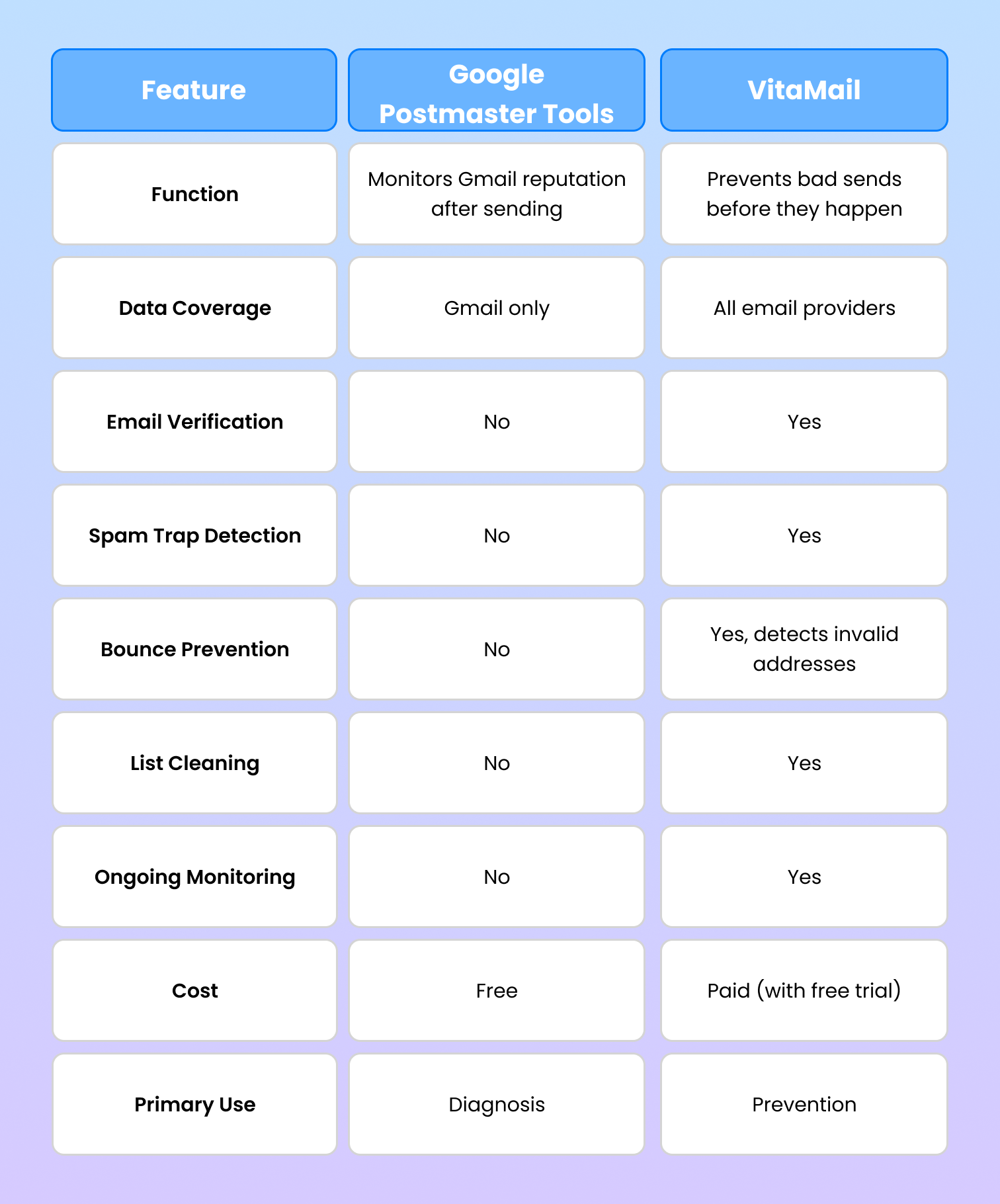
Both tools serve different purposes. Use Google Postmaster Tools to monitor Gmail performance. Use VitaMail to protect your domain reputation across all providers by ensuring clean, verified email lists.
Final Thoughts: Monitor Less, Prevent More
Google Postmaster Tools is essential for anyone sending email to Gmail users. It's the only way to check domain reputation on Google and see how Gmail evaluates your sending behavior. But monitoring alone doesn't protect you.
The gap between monitoring email spam rate and preventing spam complaints is where most senders fail. You can watch your reputation decline in real time, but without proactive list verification, you're always reacting to damage instead of preventing it.
Clean email lists aren't a nice-to-have. They're the foundation of sustainable deliverability. Every invalid address you send to, every spam trap you hit, and every complaint you generate chips away at your domain reputation.
Monitoring tools show you the problem. Prevention tools solve it.