



Your Gmail Promotions tab has 4,381 unread emails: newsletters from 2019, abandoned carts, "we miss you" sequences. You want them gone in one click.
To delete all promotions in Gmail on desktop, open the Promotions tab, click the empty checkbox in the top-left toolbar, click "Select all conversations that match this search" in the banner that appears, then click the trash icon. On mobile, open the Gmail app, tap Promotions, long-press an email to enter selection mode, choose Select all, then tap delete. Deleted emails sit in Trash for 30 days before auto-purging.
This guide covers the full workflow on desktop, Android, and iOS, the filter rule that keeps the tab empty automatically, and what landing in Promotions means if you send cold email for work.
Key Takeaways:
- On desktop, open Promotions, check the toolbar box, then click "Select all conversations that match this search" and delete.
- Mobile caps selection at around 50 emails. For full cleanup, open mail.google.com in a browser with desktop view on.
- Deleting promotions does not unsubscribe you. Use the unsubscribe link or tools like Clean Email and Unroll.me to stop the senders.
- Gmail keeps promotions indefinitely. A filter on category:promotions set to "Delete it" routes new ones to Trash, which purges after 30 days.
- To move a sender out of Promotions, drag the email to Primary and confirm "Yes" for future messages.
- Cold emails get flagged by HTML styling, image-to-text ratio, tracking pixels, and weak engagement. Plain text and real personalisation reach Primary.
Delete All Promotions in Gmail on Desktop in 30 Seconds
The desktop workflow is the fastest option and works on any browser.
- Open Gmail at mail.google.com.
- Click the Promotions tab in your inbox view.
- Click the empty checkbox at the top-left of the email list. This selects the 50 emails currently visible.
- A banner appears at the top reading "All 50 conversations on this page are selected." Click the blue link "Select all conversations that match this search."
- Click the trash can icon at the top of the list.
- Confirm the delete action if prompted.
Every promotional email moves to Trash. Gmail empties Trash automatically after 30 days, but if you want them gone immediately, click Trash in the left sidebar, click the empty checkbox, then click "Empty Trash now."
Important: the difference between "select all on this page" (50 emails) and "select all conversations that match this search" (every promotion in your account) is the difference between deleting 50 emails and deleting 50,000. Always click the second link if you want a complete cleanup.
If you do not see a Promotions tab at all, it has been disabled in your inbox settings. Skip to the section below on disabling and re-enabling the tab.
Delete All Promotions in Gmail on Mobile (Android and iOS)
Mobile Gmail does not have the desktop "Select all conversations that match this search" option. You can only select what is currently loaded on screen, which means deleting in batches of around 50.
Android
- Open the Gmail app.
- Tap the menu icon in the top-left corner, then tap Promotions under the Categories list.
- Long-press any email to enter selection mode.
- Tap the three-dot menu at the top-right, then choose Select all to select every visible email (typically the first 50).
- Tap the trash icon.
- Repeat for each batch of 50, or use the browser workflow below.
iOS (iPhone and iPad)
- Open the Gmail app.
- Tap the menu icon, then tap Promotions.
- Tap the circular sender icon to the left of the first email to enter selection mode.
- Tap each email you want, or use Select all if available in your app version.
- Tap the trash icon.
For an iPhone with thousands of promotional emails, the practical move is to switch to your mobile browser, open mail.google.com, request the desktop site from Safari's settings menu, and use the desktop "Select all conversations" workflow. It takes 30 seconds instead of 30 minutes of batch deletion. Mobile accounts for 41% of email opens (Litmus 2024), but mobile clients are still the worst environment for bulk inbox management.
Use a Filter to Auto-Delete Promotions Going Forward
If you do not want to repeat this cleanup every quarter, create a filter that sends future promotions straight to Trash.
- In Gmail desktop, click the search box at the top of your inbox.
- Click the filter icon (sliders) on the right side of the search bar.
- In the search query field, type category:promotions.
- Click Create filter.
- Check Delete it.
- Optionally check Also apply filter to matching conversations to delete every existing promotion at the same time.
- Click Create filter again to confirm.
This filter runs every time a new email arrives. Anything Gmail classifies as a promotion goes directly to Trash and auto-deletes after 30 days.
Warning: auto-delete is aggressive. Receipts, shipping confirmations, and account notifications sometimes get classified as promotions. If you depend on those emails arriving reliably, replace Delete it with Skip the Inbox (Archive it). The emails stay searchable and out of your face, but they do not get purged.
You can edit the filter at any time from Settings > See all settings > Filters and Blocked Addresses.
Disable the Gmail Promotions Tab Entirely
Some users prefer no tabbed inbox at all. Every email lands in one stream.
- Open Gmail desktop.
- Click the gear icon in the top-right and choose See all settings.
- Click the Inbox tab.
- Under Categories, uncheck Promotions.
- Scroll to the bottom and click Save Changes.
Without the Promotions tab, all promotional emails arrive in your Primary inbox. This sounds worse, but for users who routinely miss receipts, account notifications, or important emails that get mistakenly filtered, the single-stream view is more reliable. You can still archive in bulk with the same select-all workflow.
What Happens When You Delete Promotions in Gmail
Deleting moves emails to Trash. It does not unsubscribe you from the senders. New emails from those senders arrive normally, and if you do not unsubscribe or block, the Promotions tab refills within weeks.
To actually stop the flow:
- Unsubscribe at the bottom of each email for legitimate senders. Reputable companies process unsubscribes within 10 business days under CAN-SPAM rules. Note: this section is informational and not legal advice.
- Use Gmail's "Unsubscribe" link at the top of the email next to the sender's name. Gmail surfaces this when a List-Unsubscribe header is present.
- Block senders who do not honour unsubscribes. Open the email, click the three-dot menu, and choose Block [sender].
- Mark as spam for clearly unwanted mail. This trains Gmail's filter and damages the sender's deliverability reputation.
For mass unsubscribes, services like Clean Email and Unroll.me aggregate every subscription on your account and let you opt out in bulk from one dashboard. They are useful for personal cleanup but should not be used on accounts where you actively manage business email.
Why This Matters If You Send Cold Email
If your job involves sending cold email, the fact that millions of Gmail users delete their Promotions tab in bulk every month is a problem worth understanding. Gmail has over 1.8 billion active users globally (Statista 2024). When your cold email lands in a recipient's Promotions tab, it is competing with thousands of unread newsletters and is one bulk-delete away from oblivion.
Gmail decides Promotions vs Primary using a combination of signals. The most influential are:
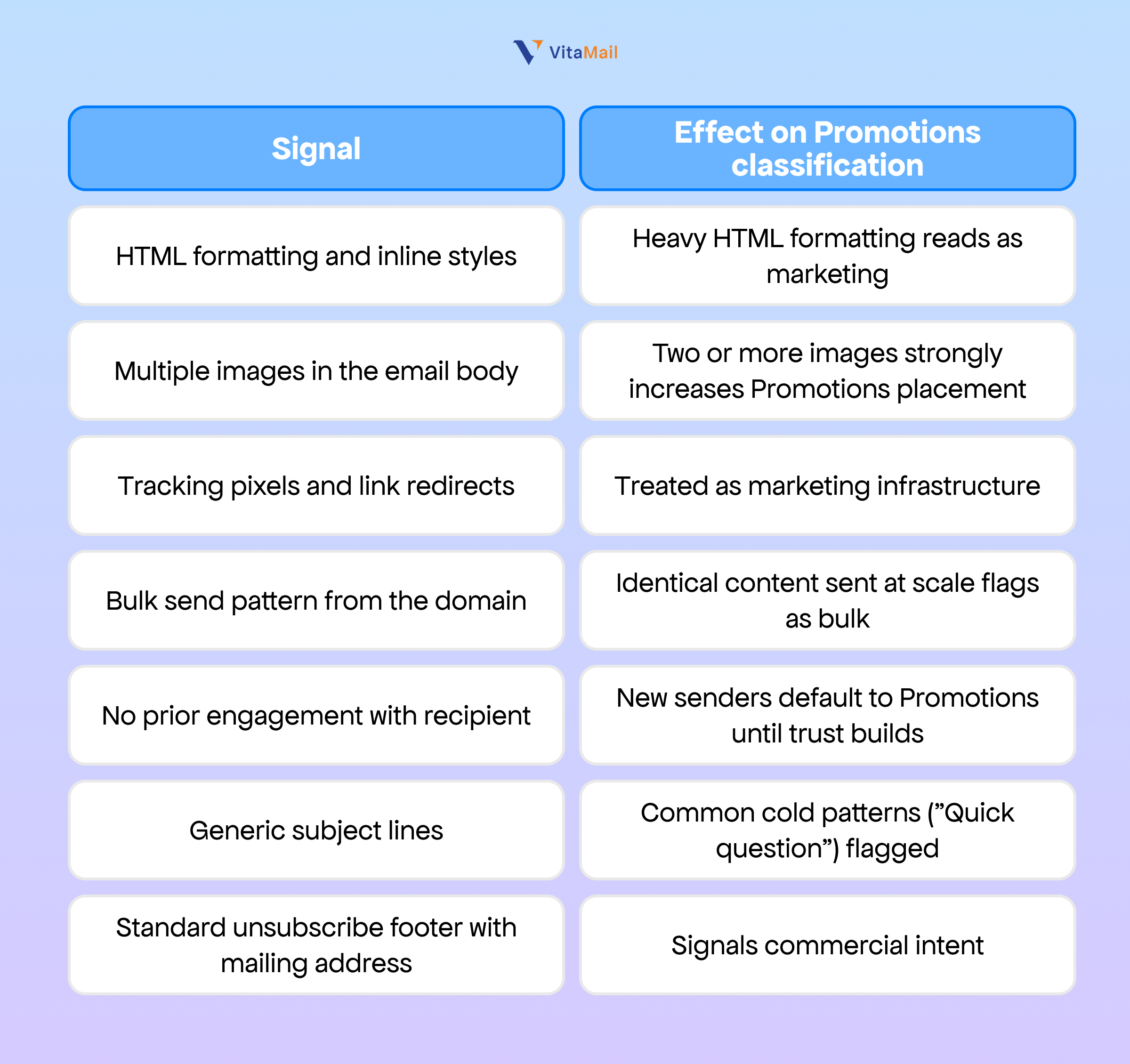
Marcus Okafor at Chartline learned this the hard way during his first outbound campaign. The agency he hired sent 3,000 emails in week one with HTML signatures, tracking pixels enabled, and a clean unsubscribe footer. Open rates came in at 9%, well below the 25–40% benchmark for personalised outbound (Lemlist 2024). The agency had built a beautiful campaign that landed entirely in Promotions.
The fix is structural. Cold emails that consistently reach Primary share five traits:
- Plain-text formatting with minimal HTML.
- No images in the body.
- No tracking pixels, or selective tracking on opens only.
- A warmed sending domain with positive engagement history.
- Personalised content that reads as a one-to-one note, not a broadcast.
For the full deliverability picture, run the domain health diagnostic before launching any new campaign. The same principles apply whether you send 50 emails a week or 5,000.
How VitaMail Keeps Your Cold Emails Out of Promotions
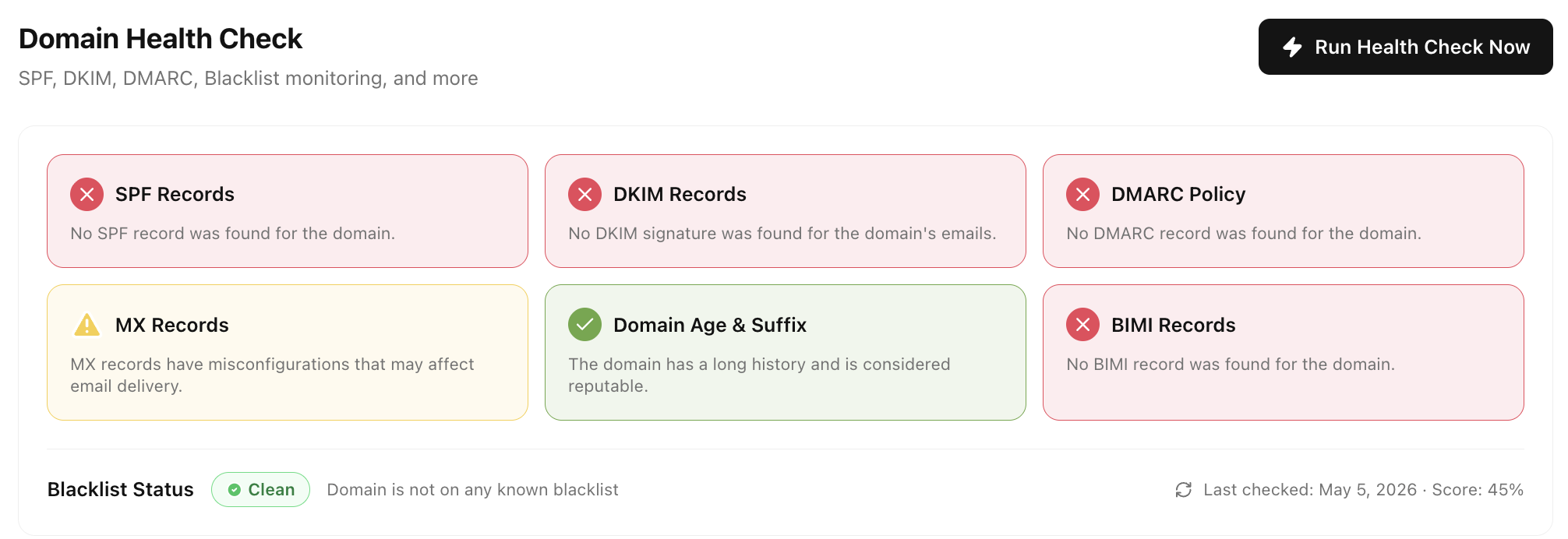
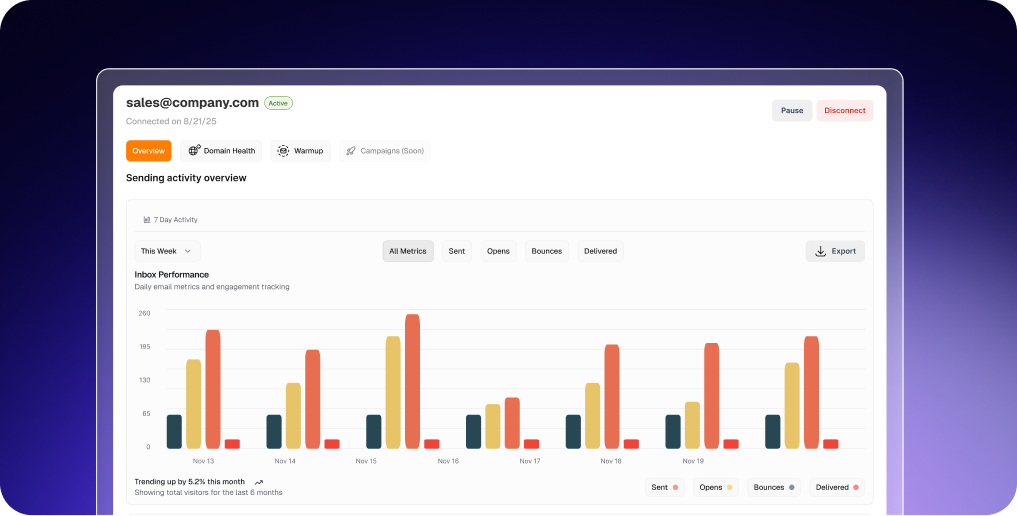
VitaMail handles the deliverability work that determines whether your cold emails reach Primary. It runs a domain health check on your sending domain and flags missing SPF, DKIM, and DMARC records before you send a single message. It manages automated warmup that builds positive engagement history on your domain, gradually scaling sending volume to match real human behaviour.
The AI personalisation engine writes plain-text emails using prospect-specific data from LinkedIn, company news, job postings, and intent signals, which means each message reads as a one-to-one note rather than a templated broadcast. The platform monitors deliverability metrics in real time and pauses sending automatically if reply rates drop or spam complaints spike, before the damage compounds across your domain.
The full workflow covers website analysis, ICP definition, validated lead lists, warmup, and AI-personalised sequences in a single platform. If you have been running outbound from a cold domain or watching your reply rate drift toward zero, the complete domain warmup walkthrough is the first thing to read.
Conclusion
Cleaning your Gmail Promotions tab is a 30-second job on desktop and a 5-minute job on mobile. The "Select all conversations that match this search" link is the only step most people miss, and it is the difference between deleting one page and deleting your entire promotional history.
If you send cold email for work, the more important takeaway is what landing in Promotions means for your reply rates. Recipients who clean their Promotions tab in bulk delete your message before they ever read the subject line. The fix is structural: clean domain health, gradual warmup, plain-text formatting, and personalisation that does not read as a broadcast. VitaMail handles those four pieces in a single workflow.
Want to see how your sending domain looks to Gmail's classifier? Start VitaMail free → and run a domain health check in under two minutes.